How to Reset f150 Screen
Imagine your F-150’s infotainment screen suddenly freezing mid-drive, leaving you stuck without navigation or media controls. Knowing how to reset your F-150 screen is essential for quickly restoring functionality without losing your settings.
You need a quick, effective way to resolve these glitches, whether through a simple power cycle or a more involved battery disconnect. But when exactly should you take each step?
What comes next to ensure smooth operation? Understanding the right reset method can save you time and frustration on the road.
Key Takeaways
- Perform a soft reset by holding the infotainment power button for 10 seconds until the screen restarts.
- If issues persist, do a hard reset by disconnecting the negative battery terminal for 10 minutes.
- After a hard reset, update the system software and calibrate the touchscreen for accuracy.
- Use soft resets for minor glitches to avoid losing saved settings and user preferences.
- Regularly update software and maintain battery health to prevent screen malfunctions and resets.
When to Reset Your F-150 Screen and Why
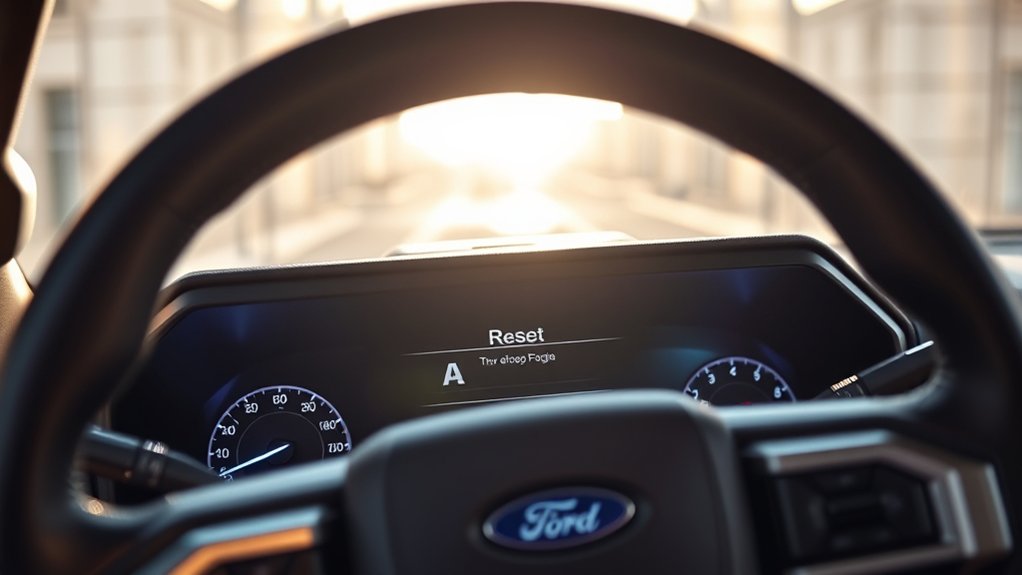
When should you reset your F-150 screen? You should consider resetting when the screen becomes unresponsive, freezes, or displays erratic behavior.
Before doing so, focus on understanding battery health, as low voltage or a failing battery can cause screen malfunctions. A healthy battery ensures stable power delivery, preventing electronic glitches.
Understanding battery health is key, as low voltage or a failing battery can cause screen malfunctions.
Additionally, assess software updates regularly; outdated or corrupted software can lead to interface issues. If you notice problems after an update, a reset might be necessary to restore functionality.
Resetting helps clear temporary software conflicts, but it’s crucial to rule out hardware-related causes first. By monitoring battery status and keeping your system updated, you can determine when a reset is the most effective troubleshooting step for your F-150 screen.
How to Soft Reset Your F-150 Screen
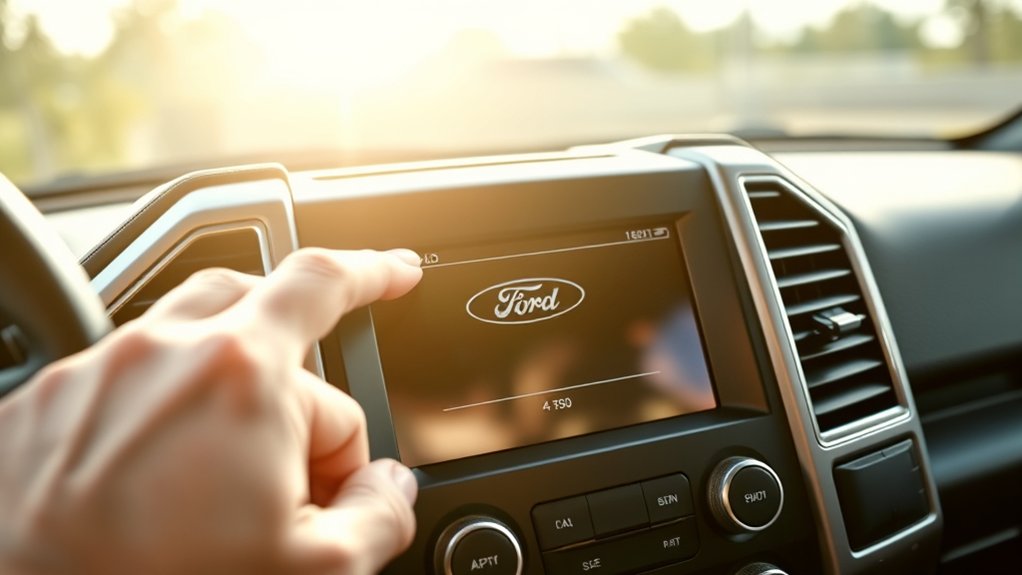
Performing a soft reset on your F-150 screen can quickly resolve minor glitches without affecting your saved settings. To initiate a soft reset, press and hold the power button on the infotainment system for about 10 seconds until the screen goes black and then restarts.
This process forces a screen refresh, clearing temporary software issues that may cause unresponsiveness or display errors. Avoid disconnecting the vehicle’s battery, as it’s unnecessary and could disrupt other systems.
After the screen powers back on, verify that all your preferences remain intact and the interface responds smoothly. A soft reset is an efficient first step to troubleshoot screen problems, restoring normal function without erasing personalized data or requiring extensive system resets.
How to Hard Reset Your F-150 Screen
Why might you need to hard reset your F-150 screen? If the display freezes, becomes unresponsive, or software glitches persist after a soft reset, a hard reset is necessary. This reset procedure restores the system to its original factory settings, resolving firmware conflicts and corrupted data.
To perform a hard reset, first turn off the vehicle and remove the key. Next, disconnect the negative terminal of the battery for about 10 minutes to fully power down the screen’s control module. Reconnect the battery, restart the vehicle, and the system will initiate a full reboot.
Afterward, you’ll need to complete the screen calibration to guarantee touch accuracy and proper functionality. This process effectively restores your F-150 screen’s performance when software issues resist simpler resets.
Fixing Common Issues After Resetting Your F-150 Screen
After completing a hard reset on your F-150 screen, you might encounter issues like unresponsive touch controls, distorted display, or connectivity problems. To fix screen glitches, first ensure the system software is updated via the vehicle’s settings menu.
Post-hard reset, update your F-150’s system software to resolve touch, display, and connectivity glitches.
If touch responsiveness lags, calibrate the screen if your model allows it. Distorted display often results from interrupted reset processes; performing a soft reboot can resolve this.
For connectivity issues, verify Bluetooth and Wi-Fi settings, and re-pair devices if needed. Charging issues post-reset may stem from software conflicts; check the USB port for debris and test with different cables.
If problems persist, consult a diagnostic scan to rule out hardware faults. Addressing these steps systematically restores optimal screen function after resetting.
How to Prevent Your F-150 Screen From Freezing
How can you keep your F-150 screen running smoothly without freezing? Managing reset frequency is essential; too many resets may mask underlying software issues, while too few can cause software instability.
Regularly update your system to maintain prime performance and reduce freezing risks. Avoid running multiple apps simultaneously, which strains the processor and increases freeze chances.
| Action | Benefit |
|---|---|
| Limit reset frequency | Prevents software instability |
| Update software regularly | Enhances system stability |
| Close unused apps | Reduces processor load |
| Avoid extreme temperatures | Protects hardware integrity |
| Use official accessories | Ensures compatibility |
Frequently Asked Questions
Can I Update the F-150 Screen Software Without Resetting It?
Yes, you can perform a software update on your F-150 screen without resetting it. Focus on two word discussion ideas like “update process” and “data retention” to ensure the update installs smoothly without wiping settings.
Does Resetting the Screen Affect My Saved Radio Stations?
Resetting your F-150 screen won’t obliterate your saved radio stations like a supernova; the reset behavior typically preserves storage impact on presets. However, a full factory reset might erase them, so choose your reset type carefully.
How Do I Connect My Phone to the F-150 Screen?
You connect your phone via Bluetooth or USB port, ensuring screen compatibility. Enable Bluetooth on both devices, then pair.
For USB, use a compatible cable; if issues arise, apply USB troubleshooting by checking connections and settings.
What Should I Do if the Screen Won’T Turn On?
About 30% of F-150 owners face screen issues. For troubleshooting, start with simple screen troubleshooting steps, then try factory reset guidelines.
If these fail, seek professional help to avoid voiding your warranty or causing damage.
Are There Any Warranty Issues Related to Resetting the Screen?
Warranty questions usually exclude issues caused by user resets, so you won’t void coverage by resetting. However, be cautious with privacy concerns. Resetting might erase personal data, so back up info before proceeding to protect your privacy.
Conclusion
Resetting your F-150 screen can resolve up to 80% of common infotainment glitches. Start with a soft reset by holding the power button for 10 seconds to clear minor issues without losing settings.
If problems persist, perform a hard reset by disconnecting the battery for 10 minutes. Afterward, update your software, recalibrate the touch screen, and check your Bluetooth and Wi-Fi connections to ensure smooth, reliable performance.
Regular maintenance prevents future freezes effectively. Following these steps will help you efficiently reset your F-150 screen and maintain optimal functionality.